Zum Inhalt springen
  • Blog
  • Cookie Policy (EU)
  • Datenschutzerklärung
  • EBF Docs
  • Onboarder Source and Target
  • Test
  • EBF product documentation

    Find help using and administering EBF applications

    EBF Onboarder

    • Release Notes
    • 01. Introduction
    • 02. Registration
    • 03. Preparation of the migration
    • 04. Migration project setup
    • 05. Communication
    • 06. Transformation Tool
    • 07. Enrollment Wizard
    • 08. Enrollment Advice
    • 09. Migration launch
    • 10. Migration monitoring
    • 11. Migration project management
    • 12. EBF Onboarder Status website
    • 13. Platforms
    • 14. Contact
    • Target System Jamf Pro / School
    • Target System MaaS360
    • Target System Microsoft Intune
    • Target System Omnissa Workspace ONE
    • Target System Ivanti EPMM and Neurons
    • Source System baramundi Management Suite (bMS)
    • Source System Jamf Pro
    • Source System MaaS360
    • Source System Microsoft Intune
    • Source System Omnissa Workspace ONE
    • Source System Ivanti EPMM Neurons / MobileIron Core and Cloud and Ivanti EPM (Landesk)
    • Source System BlackBerry UEM Cloud
    • Source System Blackberry UEM v12
    View Categories
    • Home
    • EBF Docs
    • EBF Onboarder

    07. Enrollment Wizard

    3 min read

    By default, the EBF Onboarder migration will start as soon as the user clicks on the start button or the link which was provided in the invitation email, notification or web clip.

    The Enrollment Wizard is a tool which you can use optionally to optimize and customize the communication around your migration project. It can be used to provide users with individual introductory information on separate pages at the beginning of the actual migration process and thus complements the invitations and reminders which you send to your users.

    This allows you:

    • to explain the migration process in more detail,
    • to provide important information that they need to take into account and which they have to confirm by selecting a checkbox which is necessary to proceed with the device migration (e.g. ‘Please confirm that you have read this page.’),
    • to offer a possibility to cancel the process with the help of a dialog box. This might be necessary if the migration was started with the wrong device, if the migration conditions aren’t the best (low battery status) or if the user cannot access a documentation which he should follow.

    07.1. Page setup

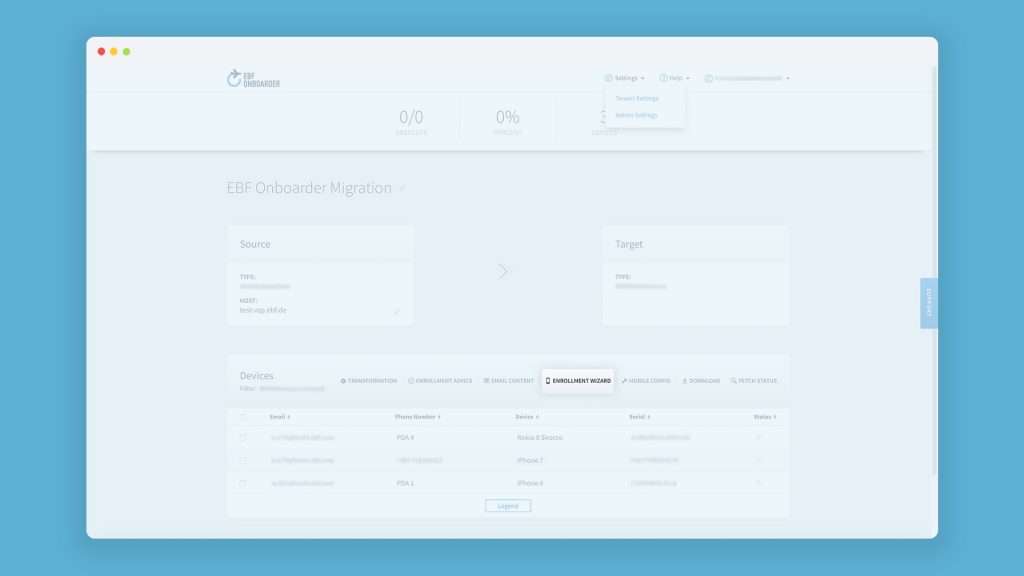
    You can access the Enrollment Wizard via the button ‘Enrollment Wizard’ which can be found at the migration project dashboard of each migration project:
    1. Create your own page from scratch or choose one of the three templates which you can access by clicking on {}:

      NOTE: When the template is loaded, you will remain on the ‘Start-Migration’ page. Click on ‘Page 1’ to visualize the template and to make changes on the first page.

    2. You can add a page by clicking on ‘+ Add page’ or remove a page by clicking ‘– Remove Last Page’.
    3. You can customize the content, font color and background color of each page by using the editor and the tools provided on top and at the bottom of it.

      NOTE: If you use the template Wizard EBF or Wizard dark, you cannot change the background color.

    4. You can add a dialog box or check box to the pages:
      • Add a check box by selecting ‘CheckBox’ and enter the text which should appear next to the box. If the user does not select the box, he won’t be able to access the next page of the Wizard.
      • Add a dialog box by selecting ‘DialogBox’ and enter the text which should appear in the box.
    5. You can delete the EBF logo which is shown on the start page by default by selecting the box ‘Hide Logo’.
    6. Test your pages with the ‘Preview Tool’ (see chapter 07.2).
    7. Click on ‘Save’.

    07.2. Page preview

    After creating your pages, it is recommended to take a look at those pages and to check if everything is displayed correctly. You can do that with the help of a Preview Tool which presents how the pages will look like on a mobile device. Once you are satisfied with the result, you can test the process with a test device.

    1. Open the Enrollment Wizard.
    2. Click on the device icon for each page which you have created/changed:
    3. Check if the content, colors, boxes etc. are correct:
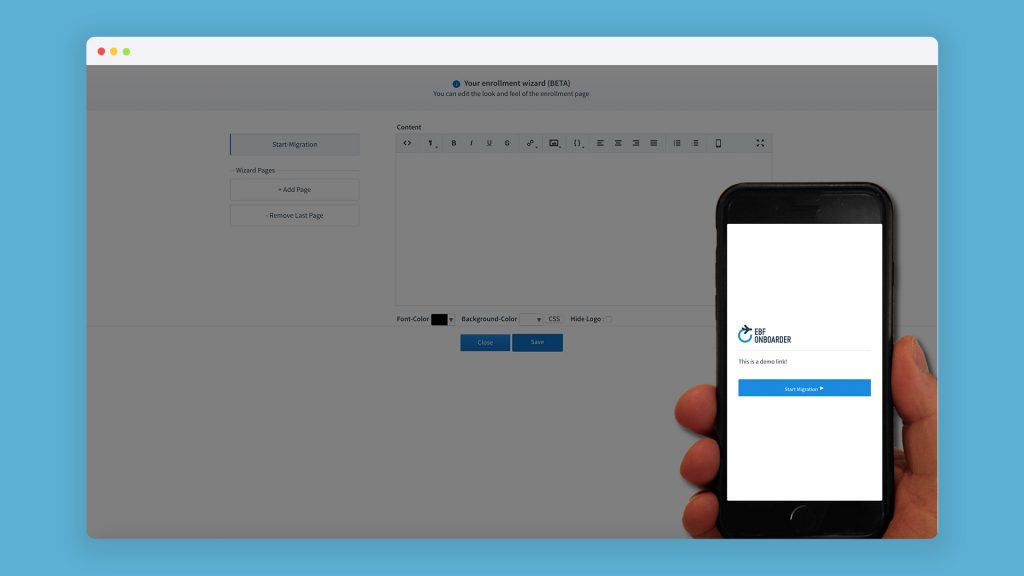
    4. Change the pages if necessary. If you change something, you can right away check whether the adjustments have led to the desired change.

    Was this article useful?

    Still stuck? How can we help?

    How can we help?

    Updated on 18. September 2023
    06. Transformation Tool08. Enrollment Advice
    Table of Contents
    • 07.1. Page setup
    • 07.2. Page preview
    Linkedin-in Phone
    Workplace Management
    • UEM Solutions
    • Migrations
    • Services
    Modern Work Tools
    • Sync Contacts
    • Hybrid Data Management
    • Secure Mobile Printing
    • eSIM Management
    • App Management
    IT Security
    • IAM
    • Modern Threat Defense
    • Cyber Risk Management
    • Secure Development
    • Zero Trust
    • Security Check
    AI Solutions
    • AI Consulting
    • AI Development
    Company
    • About Us
    • References
    • Partners
    • Sustainability
    • Careers
    • Trends
    © 2026 EBF-EDV Beratung Föllmer GmbH
    • Privacy Policy
    • GTC
    • EULA
    • Imprint
    Manage Consent
    To provide the best experiences, we use technologies like cookies to store and/or access device information. Consenting to these technologies will allow us to process data such as browsing behavior or unique IDs on this site. Not consenting or withdrawing consent, may adversely affect certain features and functions.
    Functional Immer aktiv
    The technical storage or access is strictly necessary for the legitimate purpose of enabling the use of a specific service explicitly requested by the subscriber or user, or for the sole purpose of carrying out the transmission of a communication over an electronic communications network.
    Preferences
    The technical storage or access is necessary for the legitimate purpose of storing preferences that are not requested by the subscriber or user.
    Statistics
    The technical storage or access that is used exclusively for statistical purposes. The technical storage or access that is used exclusively for anonymous statistical purposes. Without a subpoena, voluntary compliance on the part of your Internet Service Provider, or additional records from a third party, information stored or retrieved for this purpose alone cannot usually be used to identify you.
    Marketing
    The technical storage or access is required to create user profiles to send advertising, or to track the user on a website or across several websites for similar marketing purposes.
    • Optionen verwalten
    • Dienste verwalten
    • Verwalten von {vendor_count}-Lieferanten
    • Lese mehr über diese Zwecke
    View preferences
    • {title}
    • {title}
    • {title}
    EBF Status Check